
1. Introduction
Welcome to the Koretel PBX administration interface. This manual will guide you through the comprehensive administrative functions available in the Koretel ACD Portal. As a system administrator, you have access to advanced features for managing users, analyzing call data, configuring system settings, and monitoring overall system performance.
The Koretel PBX admin panel provides powerful tools for call center management, reporting, and system configuration. This manual covers all administrative aspects from basic user management to advanced reporting and system maintenance.
2. Accessing the System
System Requirements
- A modern web browser (Chrome, Firefox, Edge, or Safari)
- Administrative username and password
- Appropriate administrative privileges
- Stable internet connection
Accessing the Admin Portal
- Open your web browser
- Navigate to the Koretel ACD Portal URL
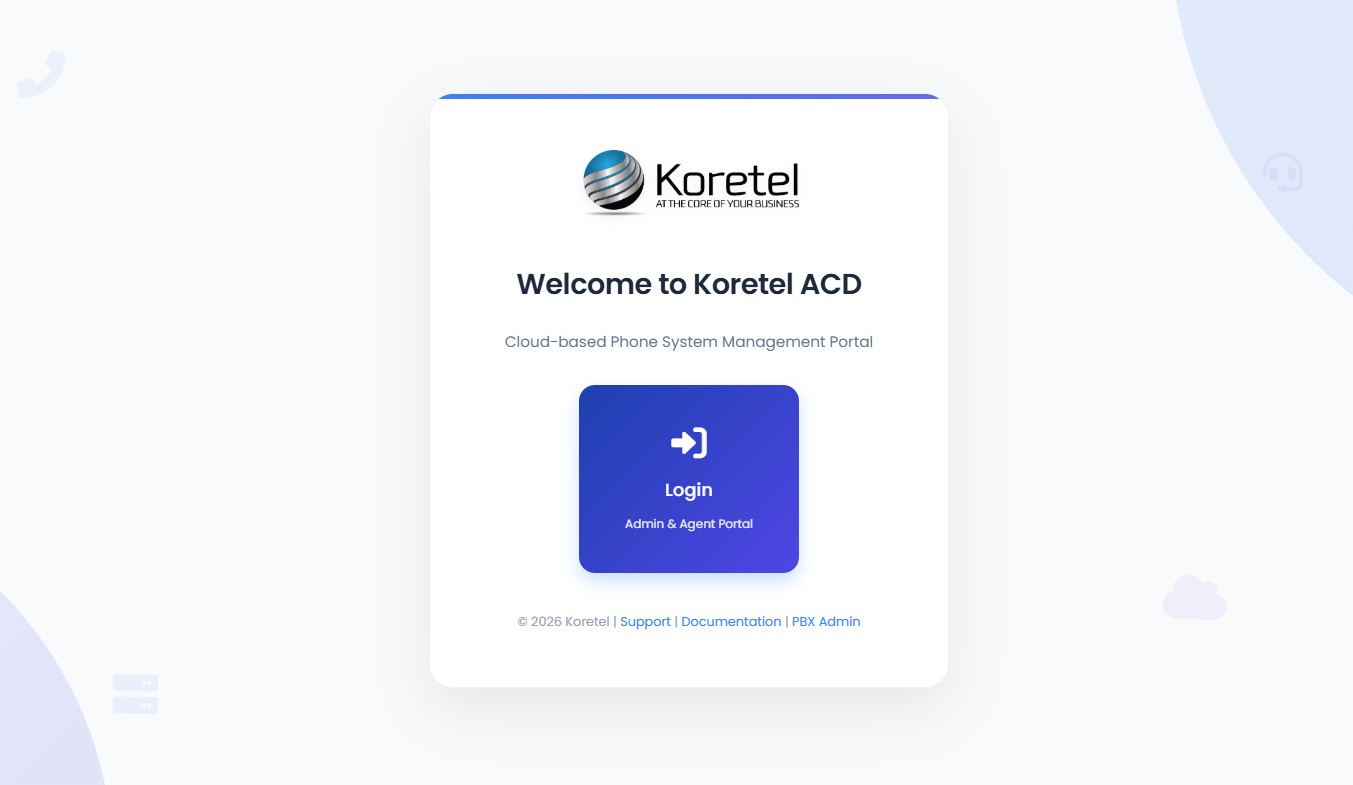
- You will see the main welcome page with two login options
- Click on "Admin Login" (left side button with shield icon)
3. Admin Login Process
Login Credentials
After selecting Admin Login, you will be directed to the administrative login page. Enter your credentials:
- Username - Your administrative username
- Password - Your secure password
- Extension (Optional) - Your extension number if applicable
The "Remember me" option will save your username for future logins. Use this feature according to your organization's security policy.
Security Features
- Secure password hashing
- Session management
- Role-based access control
- Automatic logout after inactivity
4. Dashboard Overview
Main Dashboard Layout
After successful login, administrators access a comprehensive dashboard with two main sections:
Navigation Menu Structure
The admin interface features a comprehensive navigation menu with the following main sections:
| Menu Section | Sub-items | Description |
|---|---|---|
| Dashboard | Main dashboard view | Central hub for accessing all reporting and monitoring tools |
| Reports | Realtime, Historical, Agent-wise, Automated, QA | Comprehensive reporting system with multiple categories |
| Settings | Users, Roles, Pause Codes, Queue Agents | System configuration and management tools |
| Profile | Profile settings, Dark mode, Sign out | Personal account management and preferences |
Realtime Monitoring Features
The realtime monitoring section provides instant access to:
- Realtime Queue Wallboard - Live monitoring of queue activity with real-time updates
- Agent Status Display - Current agent availability and activity
- Call Metrics - Live call volume, wait times, and performance indicators
- Visual Indicators - Color-coded status displays and "Live" badges
The realtime wallboard features automatic refresh capabilities to provide up-to-the-minute information without manual page refreshes.
Historical Reports Dashboard
The historical reports section provides access to three main report types:
License Management Dashboard
The system includes prominent license monitoring with visual indicators:
- Red Banner - License limit exceeded, immediate action required
- Yellow Banner - License limit approaching (2 or fewer remaining licenses)
- No Banner - License usage within normal operational limits
- License Counter - Shows current usage vs. total available (e.g., "15/20 agents")
Monitor license usage regularly to ensure uninterrupted service. The system automatically checks license compliance every 10 seconds and will restrict access when limits are exceeded.
Dashboard Navigation Tips
Efficient navigation through the admin interface:
- Dropdown Menus - Hover over Reports and Settings to see all available options
- Breadcrumb Navigation - Use browser back button or navigation links to return to previous pages
- Search Functionality - Many list pages include search and filter options
- Quick Access - Bookmark frequently used reports for faster access
Dashboard Customization
Personalize your admin experience:
- Dark Mode Toggle - Switch interface themes via profile menu
- Report Preferences - Set default date ranges and filters in report pages
- Wallboard Configuration - Customize realtime displays for your monitoring needs
- Profile Settings - Update personal information and notification preferences
Advanced Dashboard Features
Leverage advanced administrative capabilities:
Multi-level Report Access
The reporting system is organized into multiple access levels:
| Report Level | Access Requirements | Typical Users |
|---|---|---|
| Realtime Monitoring | View reports permission | Supervisors, Managers, Administrators |
| Historical Reports | View reports permission | Analysts, Managers, Administrators |
| Agent-wise Reports | Manage users permission | Team Leaders, HR, Administrators |
| Automated Reports | Manage schedules permission | System Administrators |
| QA Management | Manage QA permission | QA Specialists, Administrators |
5. User Management
Accessing User Management
To access user management functions:
- Click on "Settings" in the main navigation menu
- Select "Users" from the dropdown menu
- You will see the User Management page with a list of all users
User List Overview
The user list displays the following information for each user:
| Column | Description |
|---|---|
| Name | Full name and username of the user |
| User's email address | |
| Role | Assigned role (Admin, Agent, etc.) |
| Extension | Currently logged extension (with logout option) |
| Status | Active or Inactive status |
| Actions | Edit user link |
Adding New Users
To create a new user:
- Click the blue "Add User" button at the bottom of the user list
- Fill in the required information:
- Username - Unique username for login
- Password - Secure password
- Full Name - User's complete name
- Email - Valid email address
- Role - Select appropriate role from dropdown
- Agent PIN (Optional) - 4 or 6 digit PIN for agent authentication
- Select queue access by checking the appropriate queues
- Click "Create User" to save
Agent users should be assigned to relevant queues based on their responsibilities. Administrators typically don't need queue access.
Editing Users
To modify an existing user:
- Click "Edit" next to the user you want to modify
- Update the necessary fields:
- Username cannot be changed
- Leave password blank to keep current password
- Update full name, email, role, or status as needed
- Modify queue assignments
- Update or clear Agent PIN
- Click "Update User" to save changes
Changing a user's role may affect their access to system features. Ensure role changes are appropriate for the user's responsibilities.
Agent Logout Feature
For users with active extensions, you can remotely log them out:
- Locate the user with an active extension in the user list
- Click the red logout icon next to their extension number
- Confirm the logout action
- The agent will be logged out of their current session
This feature is useful for emergency logouts, shift changes, or troubleshooting agent login issues.
6. Reports & Analytics
Reports Menu Overview
The Reports dropdown provides comprehensive access to all reporting functions, organized into logical categories:
Realtime Reports
Access live monitoring tools for immediate insights:
- Agents Queue Wallboard - Real-time agent status, queue activity, and call metrics with live updates
- Queue Stats Wallboard - Live queue performance metrics, wait times, and call volumes
- Custom Wallboard - Configurable display allowing customization for specific monitoring needs
- Operator Panel - Comprehensive operator view with full system visibility
All realtime reports feature automatic refresh capabilities and live status indicators to provide up-to-the-minute operational intelligence.
Historical Reports
Generate detailed historical analysis for performance tracking:
- Custom Reports - Build reports with specific criteria, date ranges, and data points
- Call Details - Individual call records with complete call information and metadata
- Call Summary - Aggregated call statistics and volume analysis
- DID Performance - Inbound number performance analysis and call routing metrics
- Queue Performance - Queue efficiency, service levels, and performance indicators
- Hourly Queue Performance - Time-based queue analysis for identifying peak periods
- Ring Group Performance - Ring group statistics and distribution analysis
Agent Wise Reports
Individual agent performance tracking and analysis:
- Agent Queue Performance - Individual agent metrics, productivity, and performance indicators
- Agent Attendance Report - Login/logout tracking, work time analysis, and attendance patterns
Agent-wise reports should be used in compliance with your organization's privacy policies and employee monitoring guidelines.
Automated Reports
Set up automated reporting for regular delivery and monitoring:
- Scheduled Reports - Configure automatic report generation with custom schedules (daily, weekly, monthly)
- Alert Management - Set up system alerts and notifications for performance thresholds and operational issues
Scheduled reports require proper email configuration in your system. Ensure SMTP settings are correctly configured for report delivery.
Quality Assurance
Manage call quality and agent performance evaluation:
- QA Reports - Quality assessment results, evaluation scores, and improvement tracking
- QA Templates - Create and manage evaluation forms, scoring criteria, and assessment frameworks
The QA system allows for comprehensive call evaluation with customizable templates that can include:
- Call handling procedures
- Customer service quality metrics
- Compliance verification
- Agent coaching opportunities
7. System Settings
Role Management
Access role management through Settings > Roles. The role management system allows you to:
Creating New Roles
- Click "Settings" in the main navigation menu
- Select "Roles" from the dropdown
- Click "Add Role" button
- Fill in the role information:
- Role Name - Unique identifier for the role
- Description - Detailed explanation of the role's purpose
- Select appropriate permissions from categorized lists
- Click "Create Role" to save
Permission Categories
Permissions are organized into logical categories for easy management:
| Category | Description | Example Permissions |
|---|---|---|
| System Management | Overall system administration | Manage system settings, license management |
| User Management | User account administration | Create, edit, delete users |
| Report Access | Viewing and generating reports | View reports, export data |
| Agent Portal | Agent-specific functionality | Agent dashboard access, queue management |
| Quality Assurance | QA tools and templates | Manage QA templates, view QA reports |
| Scheduling | Automated reporting | Manage scheduled reports, alerts |
Editing Existing Roles
- Navigate to Settings > Roles
- Click "Edit" next to the role you want to modify
- Update role name and description as needed
- Modify permission assignments:
- Check boxes to grant permissions
- Uncheck boxes to revoke permissions
- Review all categories for comprehensive access control
- Click "Update Role" to save changes
The default "admin" role has special protections - its name cannot be changed, and it should maintain full system permissions to prevent lockout scenarios.
Permission Best Practices
- Principle of Least Privilege - Grant only necessary permissions for each role
- Role Hierarchy - Create roles that reflect your organizational structure
- Regular Review - Periodically audit role permissions and assignments
- Testing - Test new roles with limited scope before full deployment
- Documentation - Maintain clear descriptions for each role's purpose
Pause Codes Management
Manage agent pause/break reasons through Settings > Pause Codes. The pause codes system allows you to track and categorize agent downtime with detailed reporting capabilities.
Accessing Pause Codes
- Click on "Settings" in the main navigation menu
- Select "Pause Codes" from the dropdown menu
- You will see the Pause Codes Management page with a list of all existing codes
Pause Codes List Overview
The pause codes list displays the following information for each code:
| Column | Description |
|---|---|
| Code | Short identifier used for pause identification (e.g., "LUNCH", "BREAK") |
| Description | Detailed description of the pause reason |
| Type | Paid or Unpaid break classification with color coding |
| Status | Active or Inactive status with visual indicators |
| Created | Date when the pause code was created |
| Actions | Edit and Delete options for managing codes |
Adding New Pause Codes
- Click the blue "Add Pause Code" button at the bottom of the pause codes list
- Fill in the required information:
- Code - Short code used for pause identification (e.g., "LUNCH", "TRAIN")
- Description - Detailed description of the pause reason
- Billable/Paid - Select whether this break type is paid or unpaid:
- Paid Break - Time counts toward paid hours
- Unpaid Break - Time does not count toward paid hours
- Click "Create Pause Code" to save the new code
Common pause codes include: LUNCH (Lunch Break), BREAK (Coffee Break), TRAIN (Training), MEET (Meeting), TECH (Technical Issues), ADMIN (Administrative Tasks)
Editing Pause Codes
- Click "Edit" next to the pause code you want to modify
- Update the necessary fields:
- Code - Short identifier (can be modified)
- Description - Update the description as needed
- Billable/Paid - Change between paid and unpaid classification
- Status - Set to Active or Inactive:
- Active - Available for agents to use
- Inactive - Hidden from agent selection but preserved for reporting
- Click "Update Pause Code" to save changes
Deleting Pause Codes
- Click "Delete" next to the pause code you want to remove
- Confirm the deletion in the popup dialog
- The pause code will be permanently removed from the system
Deleting pause codes will affect historical reports. Consider setting codes to "Inactive" instead of deleting them to preserve reporting data.
Pause Code Best Practices
- Standardization - Use consistent naming conventions for similar break types
- Clarity - Ensure descriptions are clear and unambiguous
- Compliance - Align paid/unpaid classifications with your organization's policies
- Regular Review - Periodically review and update pause codes based on usage patterns
- Training - Ensure agents understand when to use each pause code
Queue Agent Configuration
Configure queue assignments and agent relationships through Settings > Queue Agents. This system manages "sticky agent" assignments that automatically maintain agent-queue relationships.
Accessing Queue Agent Management
- Click on "Settings" in the main navigation menu
- Select "Queue Agents" from the dropdown menu
- You will see the Queue Agent Management interface with assignment form and current assignments table
Assigning Agents to Queues
The assignment process allows you to assign specific extensions to multiple queues simultaneously:
- Select Extension - Choose from the dropdown of available extensions:
- Format: "Technology/Extension - Name" (e.g., "PJSIP/1001 - John Doe")
- Includes both SIP and PJSIP extensions
- Choose Queues - Select multiple queues by checking boxes:
- Each queue shows format: "Queue - Queue Name"
- Multiple selections allowed for multi-skilled agents
- Save Assignments - Click "Save Queue Assignments" to apply changes
When you select an extension, the system automatically loads and displays current queue assignments by checking the appropriate boxes.
Current Queue Assignments Table
The assignments table provides a comprehensive view of all current queue-agent relationships:
| Column | Description |
|---|---|
| Extension | Agent extension in full format (e.g., "PJSIP/1001") |
| Queue | Queue identifier and name for easy identification |
| Assigned Since | Date and time when the assignment was created |
| Actions | Remove button for individual assignment deletion |
Managing Individual Assignments
You can remove individual queue assignments without affecting other assignments:
- Locate the specific assignment in the Current Queue Assignments table
- Click the red "Remove" button (trash icon) in the Actions column
- Confirm the removal in the popup dialog
- The assignment will be immediately removed from both the database and PBX
Queue assignment changes take effect immediately and will impact call routing. Ensure agents are notified of assignment changes.
Sticky Agent System
The queue agent management system uses "sticky agents" for persistent assignments:
- Automatic Re-addition - Agents are automatically re-added to their assigned queues if removed
- Login Persistence - Queue assignments are maintained across agent login sessions
- System Integration - Directly interfaces with the PBX queue system
- Conflict Resolution - Handles assignment conflicts and duplicate entries
Agents without user accounts in the system are assigned agent ID 99999 and are classified as "Remote Agents" while maintaining full queue functionality.
Assignment Best Practices
- Skill-Based Assignment - Assign agents to queues based on their skills and training
- Load Balancing - Distribute agents across queues to balance call volume
- Cross-Training - Assign skilled agents to multiple queues for flexibility
- Regular Monitoring - Review assignment effectiveness using queue performance reports
- Documentation - Keep records of assignment changes and reasons
Troubleshooting Queue Assignments
| Issue | Solution |
|---|---|
| Agent not receiving calls | Verify queue assignment, check agent login status, confirm PBX registration |
| Assignment not saving | Check database connectivity, verify permissions, ensure valid extension format |
| Duplicate assignments | Remove duplicates individually, system will prevent future duplicates |
| Extension not appearing | Verify extension exists in PBX, check extension configuration, refresh page |
License Management
Monitor and manage system licensing to ensure compliance and uninterrupted service:
License Monitoring Dashboard
The system provides real-time license monitoring with multiple visual indicators:
- Header Banners - Prominent notifications at the top of every page:
- Red Banner - License limit exceeded, immediate action required
- Yellow Banner - License limit approaching (2 or fewer remaining)
- No Banner - License usage within normal limits
- Usage Counter - Displays current vs. total licensed agents (e.g., "18/20 agents")
- Management Link - Direct access to license management for administrators
Automatic License Checking
- Real-time Monitoring - System checks license compliance every 10 seconds
- Automatic Enforcement - Access restrictions apply immediately when limits are exceeded
- Agent Count Tracking - Monitors currently active agent sessions
- Threshold Alerts - Proactive warnings when approaching limits
When license limits are exceeded, the system will redirect users to the license management page and restrict access to most functionality until compliance is restored.
License Management Actions
When approaching or exceeding license limits, administrators can take several actions:
- Deactivate Unused Accounts - Set inactive user accounts to "inactive" status
- Remove Inactive Sessions - Log out agents who are no longer active
- Review User Assignments - Audit which users truly need agent access
- Upgrade License - Contact support to increase license capacity
- Optimize Usage - Implement shift-based access to stay within limits
8. Common Tasks & Troubleshooting
Dark Mode Toggle
Switch between light and dark interface themes:
- Click on your profile icon (initials) in the top-right corner
- Select "Dark Mode" from the dropdown menu
- The interface will immediately switch themes
- Your preference is saved for future sessions
Profile Management
Access your profile settings:
- Click on your profile icon in the top-right corner
- Select "Profile" to update personal information
- Change your password or update contact details
- Save changes before navigating away
WebRTC Phone Management
For users with WebRTC phone capabilities:
- Phone status indicator shows registration status
- Green dot indicates successful registration
- Red dot indicates connection issues
- Click the phone icon to access phone controls
Common Issues and Solutions
| Issue | Solution |
|---|---|
| License Exceeded Error | Check agent count, deactivate unused accounts, or upgrade license |
| Agent Login Issues | Verify user credentials, check role permissions, ensure extension availability |
| Report Generation Fails | Check date ranges, verify data availability, ensure proper permissions |
| Queue Assignment Problems | Verify queue exists in PBX, check agent permissions, update assignments |
| Dashboard Not Loading | Clear browser cache, check internet connection, verify session status |
Best Practices
- Regular Backups - Ensure system data is backed up regularly
- User Management - Review user accounts periodically and deactivate unused ones
- License Monitoring - Keep track of license usage to avoid service interruptions
- Security - Use strong passwords and review user permissions regularly
- Documentation - Keep track of system changes and configurations
Security Guidelines
- Always use the "Sign Out" option when finished
- Don't share administrative credentials
- Regularly review user access and permissions
- Monitor system activity for unusual behavior
- Keep browsers updated for security patches
Support and Resources
For additional help and support:
- Email Support - support@cttsllc.com
- Documentation - Refer to this manual and agent documentation
- System Logs - Check system logs for error details
- PBX Admin - Access the underlying PBX admin interface when needed
This manual covers the primary administrative functions of the Koretel PBX system. For advanced PBX configuration, refer to the FreePBX documentation or contact technical support.
Last Updated: May 2025